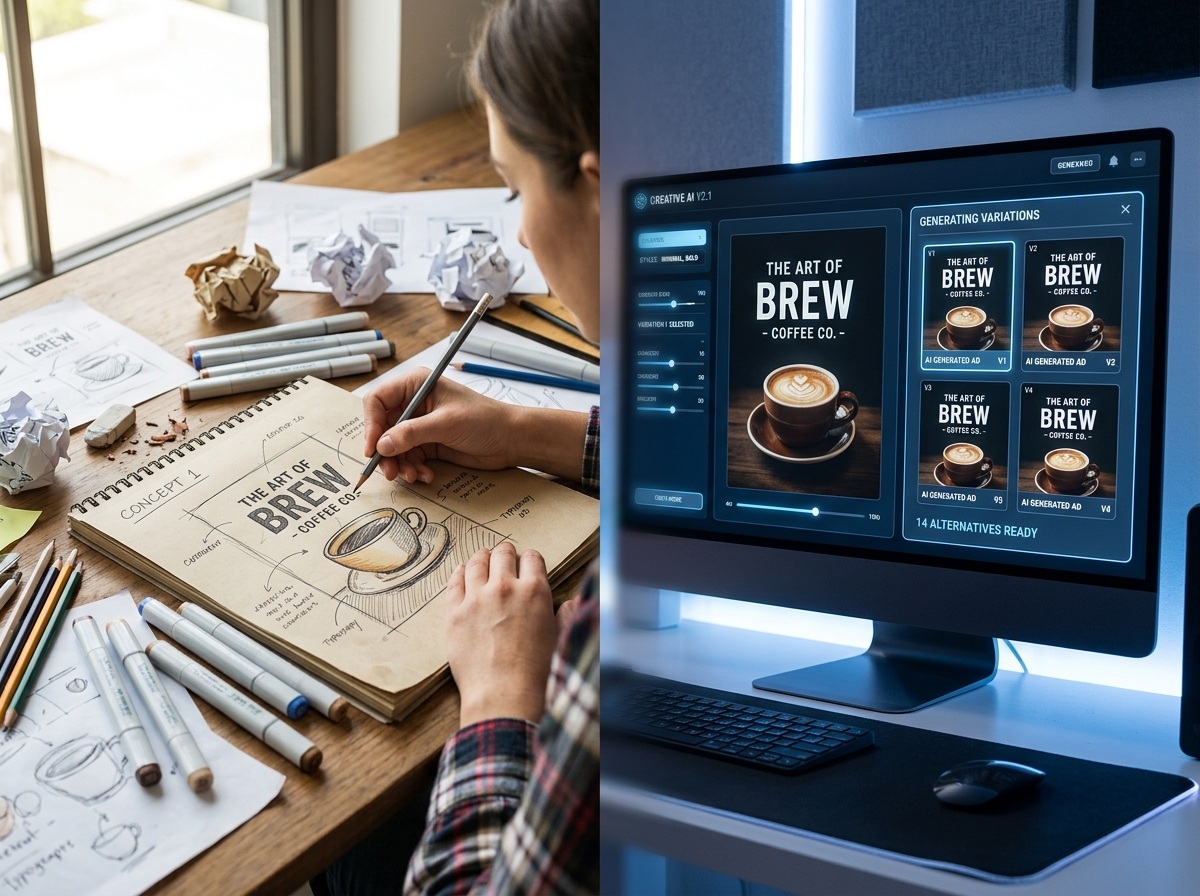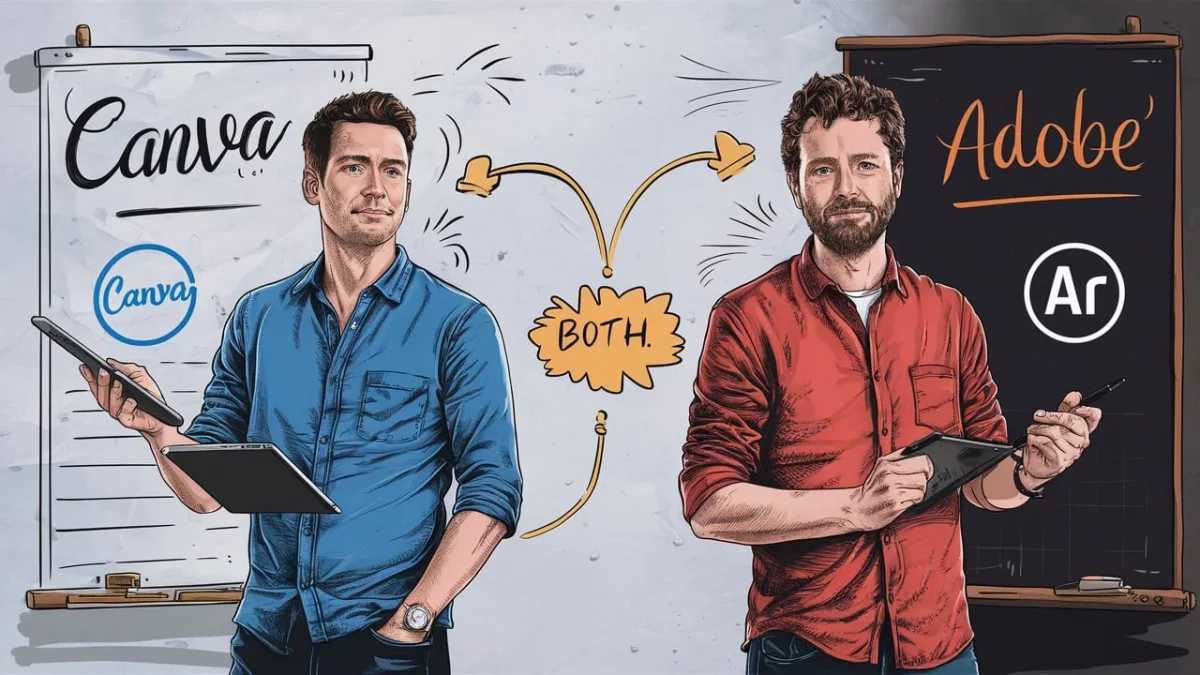
In the realm of digital design, a variety of software tools like Canva, Adobe, Corel, GIMP, and Wondershare are available at our disposal. While these tools are incredibly powerful and versatile, they are merely instruments in the hands of the creator. The true magic of design lies not in the tool itself, but in how the designer wields it.
Whether you’re crafting visuals with Canva’s intuitive interface or delving into the advanced features of Adobe Photoshop, the key to exceptional design lies in understanding and applying core design principles. Color theory, composition, typography, and other elements are fundamental to creating visually appealing and effective designs. These principles guide designers in making thoughtful choices that resonate with their audience.
However, possessing the right tools and knowledge does not guarantee success. There are instances where designs fall short, resulting in visually unappealing or ineffective outcomes. Conversely, a skilled designer can take any of these tools and create stunning, impactful designs. It’s a testament to the fact that the real value lies in the designer’s creativity, vision, and expertise.
In the dynamic world of digital design, tools like Canva, Adobe Photoshop, and Adobe After Effects offer unique capabilities to both beginners and professionals. Let’s delve into how you can leverage these tools to create stunning visuals, whether you’re using templates or starting from scratch.
| Feature | Canva | Adobe Photoshop | Adobe After Effects |
|---|---|---|---|
| Ease of Use | User-friendly, drag-and-drop interface | Steeper learning curve, professional-level tools | Requires knowledge of animation and VFX |
| Purpose | Quick designs, social media posts, presentations | Advanced photo editing, detailed image manipulation | Motion graphics, visual effects, animation |
| Templates | Extensive library of templates | Limited templates, focus on customization | Fewer templates, focus on animation |
| Cost | Free with premium plans starting at $12.95/month | Subscription-based, starting at $20.99/month | Subscription-based, starting at $20.99/month |
| Collaboration | Built-in collaboration tools | Requires Creative Cloud for collaboration | Requires Creative Cloud for collaboration |
| Editing | Basic editing tools | Advanced tools for retouching, compositing, and more | Advanced video editing, animation, VFX |
Here’s a guide on using templates and creating unique designs without templates in Canva, Adobe Photoshop, and Adobe After Effects:
Canva
Using Templates:
- Select a Template: Browse Canva’s extensive library of templates categorized by usage (social media, presentations, etc.).
- Customize: Replace images, texts, and colors to fit your brand. You can also add elements from Canva’s library, like icons and illustrations.
Creating Unique Designs:
- Start from Scratch: Select “Create a Design” and choose your dimensions.
- Add Elements: Use Canva’s library to add shapes, text, and images. Experiment with fonts and color schemes.
- Layer and Arrange: Utilize Canva’s layering features to arrange elements creatively.
Adobe Photoshop
Using Templates:
- Open a Template: Download a Photoshop template from Adobe Stock or other sources.
- Edit Layers: Photoshop templates come with layers. Edit text, replace images, and modify styles to make the template your own.
Creating Unique Designs:
- Create a New File: Choose “New File” and set your dimensions.
- Use Tools: Leverage tools like the Brush Tool, Pen Tool, and Clone Stamp for intricate designs.
- Layer Management: Create multiple layers to organize different elements. Use blending modes and layer styles for effects.
Adobe After Effects
Using Templates:
- Import a Template: Find motion graphics templates (MOGRTs) on Adobe Stock or other resources.
- Edit Composition: Open the template in After Effects and modify text, colors, and animations in the composition panel.
Creating Unique Designs:
- Create a New Composition: Set your composition settings (resolution, frame rate, etc.).
- Add Layers: Use text layers, shape layers, and solid layers to build your animation.
- Animate: Use keyframes to create animations. Add effects from the Effects & Presets panel to enhance your visuals.
Canva
- Template: Creating a social media post for a new product launch. Use a pre-designed template, swap out the product image, and adjust text colors.
- Unique Design: Designing a custom infographic. Start with a blank canvas, add shapes to represent data points, and use icons to illustrate key information.
Photoshop
- Template: Editing a wedding invitation template. Change the names, date, and location, and adjust the color scheme to match the wedding theme.
- Unique Design: Designing a surreal digital artwork. Combine multiple photos using layer masks and blending modes to create a dreamlike scene.
After Effects
- Template: Using a template for a YouTube intro. Edit the text to include your channel name and adjust colors to fit your branding.
- Unique Design: Creating a kinetic typography video. Animate text layers to move in sync with an audio track, using keyframes for dynamic motion.
Whether you’re a beginner looking to create quick designs with templates or a professional aiming to craft unique and complex visuals, these tools offer a range of functionalities to meet your needs. Dive in and explore the creative potential of Canva, Adobe Photoshop, and Adobe After Effects!